
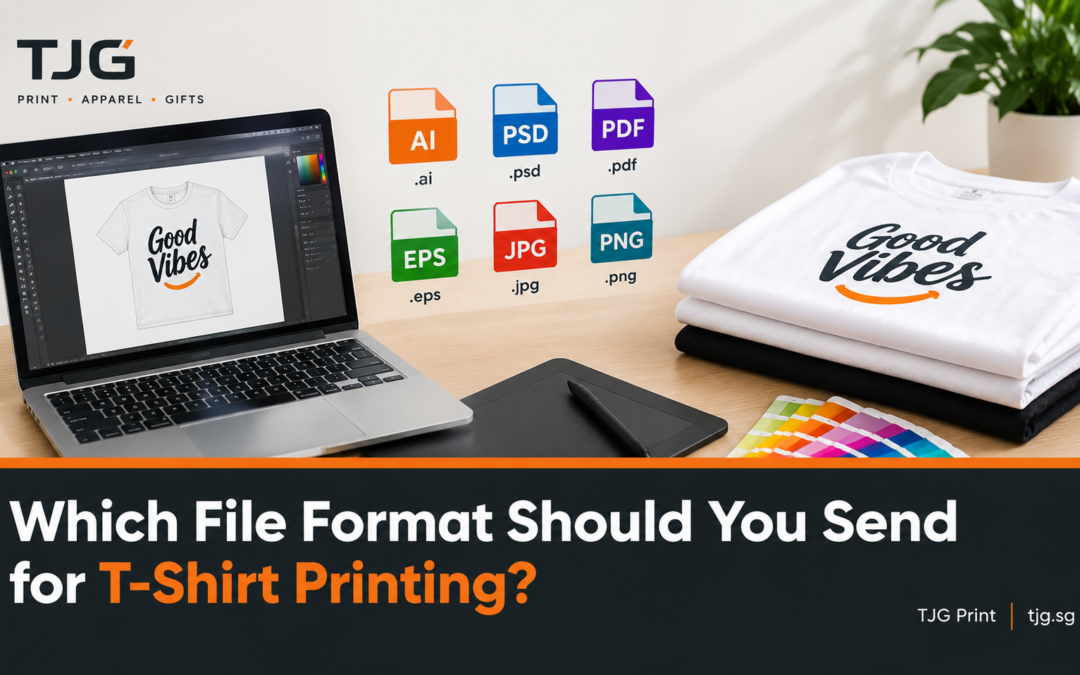
You’ve finished your design. It looks sharp on your screen, and now you need to send it to a printer. This is where many orders slow down. The file is too small, the background isn’t transparent, or the fonts have changed, and the printer has to ask for a new version.
Choosing the right file format at the start saves time, avoids reprints, and gives you cleaner results on the fabric. This guide explains which formats work best for the t shirt printing in Singapore, when to use each one, and how to prepare your artwork before sending it to a printer in Singapore.
Vector vs. Raster: The Difference That Matters Most
Every design file is either a vector or a raster file, and the difference affects print quality directly.
Vector files are built from mathematical paths, points, and curves. Because they aren’t made of pixels, you can scale them from a small logo on a left chest to a full back print with no blur or jagged edges. Common vector formats are AI, EPS, SVG, and PDF (when saved with vector data).
Raster files are made of tiny pixels. They suit photos and artwork with gradients, textures, or shading, but they have a fixed resolution. Stretch a small raster image to fit a large print and it looks soft and pixelated. Common raster formats are PNG, JPG, TIFF, and PSD.
Most t-shirt designs, including logos, text, and bold graphics, are best made as vectors. Photographic prints or painterly artwork are better supplied as high-resolution raster files.
File Formats for T-Shirt Printing, Explained
AI (Adobe Illustrator)
AI is the native file format of Adobe Illustrator and is one of the most widely requested formats in the print industry. It keeps your layers, colors, and paths editable, so a printer can separate colors, adjust sizing, or fix small issues without redrawing anything. If you design in Illustrator, send the AI file.
EPS (Encapsulated PostScript)
EPS is an older but still widely accepted vector format. It works across many design programs, which makes it handy when your printer and designer use different software. Most professional printers can open an EPS file without trouble.
SVG (Scalable Vector Graphics)
SVG is a vector format common in web and app design, and it is increasingly accepted for printing. If you design in tools such as Figma, Canva (for exports), or Inkscape, SVG is often the easiest vector option. Confirm with your printer that they accept it, since some workflows still prefer AI or EPS.
A PDF can hold vector artwork, raster images, or both. A PDF exported from a vector program usually keeps clean, scalable artwork. A PDF that simply wraps a low-resolution image doesn’t add any quality. Make sure fonts are embedded or converted to outlines before you send it.
PNG
PNG is the most useful raster format for t-shirt printing because it supports transparent backgrounds. A transparent background means only your design gets printed, with no white box around it. PNG also uses lossless compression, so it doesn’t degrade each time you save it. It is the best choice for detailed or photographic artwork when you don’t have a vector version.
JPG (JPEG)
JPG is common and convenient, but it is a weaker choice for printing. It uses lossy compression, which can create blurry edges and fuzzy artifacts around text and sharp lines. It also has no transparency, so your design arrives with a solid background that has to be removed. JPG can work for a full-color photo at high resolution, but it isn’t ideal for logos or graphics.
PSD and TIFF
PSD (Photoshop) and TIFF files preserve layers and high image quality. They are useful for complex artwork, though the files can be very large. Send these only if your printer asks for them or if your design relies on Photoshop effects.
Quick Comparison
|
Format |
Type |
Transparency |
Best For |
|
AI |
Vector |
Yes |
Logos, text, bold graphics |
|
EPS |
Vector |
Yes |
Cross-software compatibility |
|
SVG |
Vector |
Yes |
Web-based design exports |
|
|
Vector or raster |
Yes (vector) |
Final proofs and flat artwork |
|
PNG |
Raster |
Yes |
Detailed art, photos, no vector file |
|
JPG |
Raster |
No |
Photos only, as a last resort |
|
PSD/TIFF |
Raster |
Yes |
Complex layered artwork |
What Resolution Should Your Design Have?
For raster files, size matters as much as format. The standard guideline is 300 DPI (dots per inch) at the final print size.
DPI is only meaningful alongside print dimensions. Here are approximate pixel sizes at 300 DPI:
- Small left-chest logo (about 3.5 x 3.5 inches): roughly 1,050 x 1,050 pixels
- Standard front print (about 10 x 12 inches): roughly 3,000 x 3,600 pixels
- Large print (about 12 x 16 inches): roughly 3,600 x 4,800 pixels
A file saved at 72 DPI can still be fine if the pixel dimensions are large enough. What matters is the total number of pixels available for the size you want. A small image taken from social media or a website will almost never be big enough for a clear print. You can’t fix this by simply increasing the DPI setting in your software, because that doesn’t add real detail.
Color Mode, Fonts, and Other Details
The file format is only part of the picture. A few other checks prevent common problems.
- Convert text to outlines: If you use a special font and the printer doesn’t have it, the text will be replaced with a default one. Converting text to outlines (or curves) turns it into shapes and locks the design in place.
- Mind your colors: Screens display colors in RGB, while print workflows may use CMYK or specific spot colors. Bright neon tones on a screen can look duller on fabric. If exact brand colors matter, share the Pantone references or color codes with your printer.
- Remove the background: Unless you want a solid box printed, supply a transparent background. A white background on a white shirt may be invisible, but on a dark shirt it can print as a white rectangle.
- Keep the artwork at full size: Design at the actual print dimensions, or larger. Scaling up a small file is where most quality problems start.
- Limit tiny details: Hairline strokes and very small text can disappear on fabric. As a rule, keep lines and lettering thick enough to remain readable after printing.
Does the Printing Method Change the File You Need?
Slightly. Common methods include screen printing, DTF (direct-to-film), DTG (direct-to-garment), and heat transfer.
- Screen printing works with limited colors and benefits from clean vector artwork, since each color is separated onto its own screen.
- DTF and DTG handle full-color designs, gradients, and photos well, so a high-resolution PNG works nicely.
- Heat transfer and vinyl cutting typically need clean vector shapes, particularly for single-color text and logos.
If you aren’t sure which method suits your design, ask the printer first. They can tell you which file works best for the technique they’ll use.
A Simple File Checklist Before You Send Your Design
Run through this list before you email your artwork:
- Use a vector file (AI, EPS, SVG, or vector PDF) whenever possible.
- If sending PNG, make sure it has a transparent background and enough pixels for the print size.
- Avoid JPG for logos, text, and graphics.
- Convert all fonts to outlines.
- Design at the actual print size or larger.
- Note your placement (front, back, sleeve) and approximate size.
- Include color references if brand accuracy matters.
- Send a preview image or mockup so the printer can compare it with your file.
The Short Answer
For the best results, send a vector file (AI, EPS, SVG, or a vector PDF). If your design is a photo or a detailed illustration, send a high-resolution PNG with a transparent background.
Vector files can be enlarged or reduced without losing quality. High-resolution PNG files work well for detailed artwork, as long as the pixel size is large enough for the print. A low-quality JPG is the format most likely to cause problems.
Don’t Have the Right File? Ask Before You Redraw
Many people only have a logo saved as a small JPG or a screenshot, and that’s very common. Before you pay a designer, ask your printer what they can do. Many print shops offer artwork review, cleanup, or vectorizing, though the cost and time depend on how complex the design is. A simple logo is quick to redraw, while a detailed illustration takes longer.
If you’re ordering with TJG in Singapore, send what you have and share your intended print size and shirt color. The team can review the file and tell you whether it’s ready to print or needs adjustment, which is better than discovering a quality problem after the shirts are made.
Final Thoughts
For t-shirt printing, the best file is a vector (AI, EPS, SVG, or vector PDF), and the next best is a high-resolution PNG with a transparent background. Treat JPG as a last resort. Combine the right format with outlined fonts, a suitable size, and clear color instructions, and your order will move faster with fewer surprises.
Prepare your file properly, check it against the list above, and your design will print the way it looked on your screen.
Frequently Asked Questions
What is the best file format for t-shirt printing?
The best file format for t-shirt printing is a vector file such as AI, EPS, SVG, or a vector PDF. Vector files scale to any size without losing sharpness, so one file works for a small chest logo or a large back print. If your design is a photo or detailed artwork, a high-resolution PNG with a transparent background is the next best option.
Is PNG or JPG better for printing designs on t-shirts?
PNG is better for most t-shirt designs. It supports transparent backgrounds and uses lossless compression, which keeps edges and text clean. JPG has no transparency and compresses the image in a way that can blur fine lines. Use JPG only for photographs at high resolution when no PNG is available.
Can I send an AI, EPS, or SVG file for t-shirt printing?
Yes. AI, EPS, and SVG are all vector formats and are excellent for t-shirt printing because they stay sharp at any size and make color separation easier. AI and EPS are the most widely accepted. Confirm with your printer whether they accept SVG, and convert text to outlines before sending.
What resolution should a PNG or JPG t-shirt design have?
Aim for 300 DPI at the final print size. For a 10 x 12 inch front print, that means about 3,000 x 3,600 pixels. What matters is having enough actual pixels for the print size, because increasing the DPI setting on a small image doesn’t add detail. Small web or social media images are rarely large enough.
Can a printer convert my artwork into a suitable file format?
In many cases, yes. Printers can often clean up, redraw, or vectorize artwork, such as turning a low-resolution logo into a vector file. The cost and turnaround depend on how complex the design is. Share your current file and desired print size with your printer, such as TJG, and ask whether it can be used as is or needs adjustment.